
DStart
All your programs in one small, tidy list next to the clock. Click the tray icon or press a hotkey, start what you need, and get back to work.
DStart is a portable launcher in the spirit of the much-loved PStart: one small exe with nothing to install, which runs from any folder or a USB stick and takes your list with it.
A 120 KB zip holding a single file, DStart.exe. No installer, no account, no telemetry, no ads.
SHA-256 of DStart.exe: 69723FEA177B76E64DA02168FF4A69794A36B950ED44300AA291DAEC0A7590F3
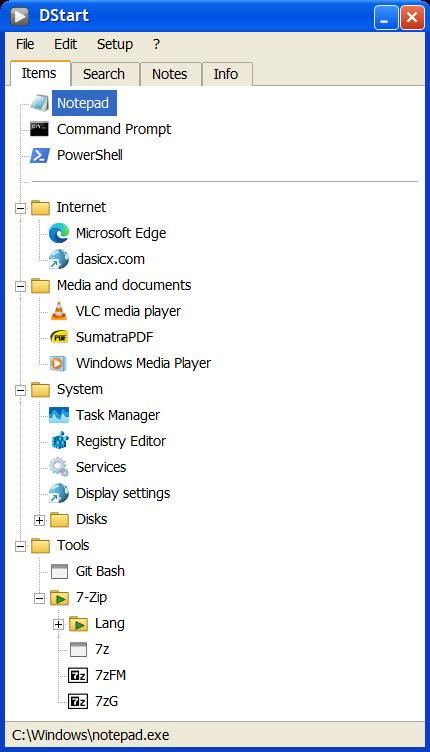
What it is
The Start menu has become a place for recommendations, web results and apps you never asked for. The programs you actually use, portable tools, scripts, a folder you open ten times a day, end up scattered across the desktop and the taskbar.
DStart gives them one home: a compact panel where you arrange them in groups and start them with a click, a key or a few typed letters. It keeps out of the way in the tray, and it is always there when you need it.
It is built for people who like their tools portable. DStart and its settings live in one folder, so a USB stick or a synced folder carries the same list to every PC you use.
Getting started
- Unzip
DStart.exeanywhere: a folder of your tools, a USB stick, a synced folder. Run it. There is nothing to install. - Drag programs, shortcuts or folders onto the list. A dropped folder becomes a live folder.
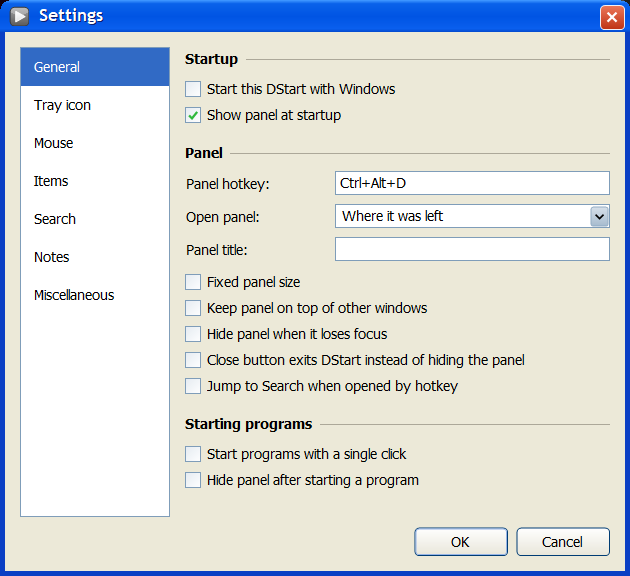
- Open it from anywhere: left-click the tray icon or press Ctrl Alt D for the panel, right-click the tray icon or press Ctrl Alt M for the program menu.
- Just start typing in the list to search your items and the Start menu.
Coming from PStart? Put your PStart.xml next to DStart.exe before the first run, and your list comes across by itself.
A look around
Everything is a click or a key away: the list, a search, your notes, and a program menu that opens wherever the mouse is.
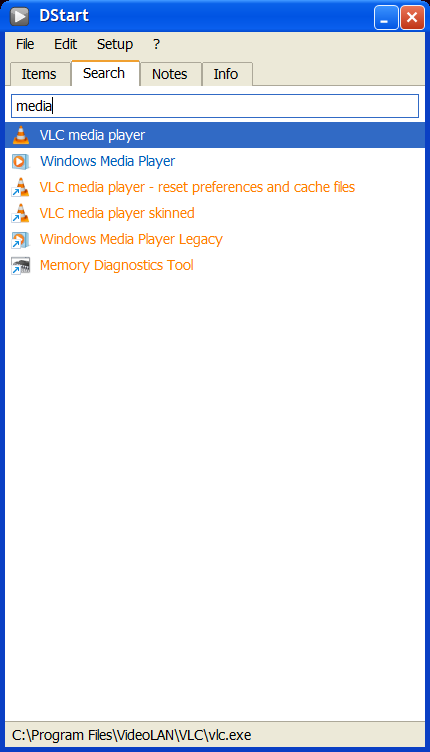
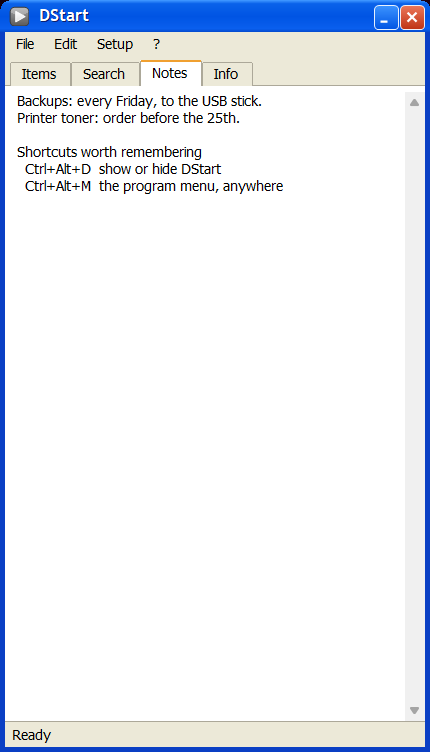
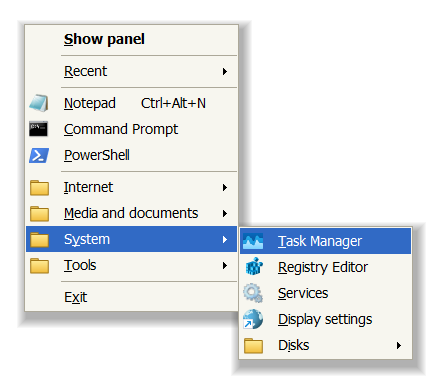
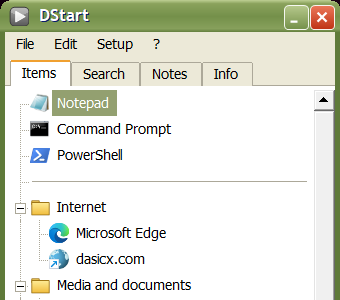
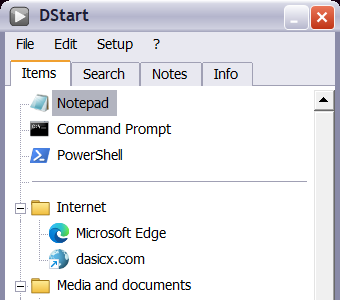
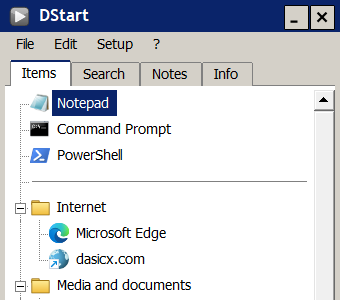
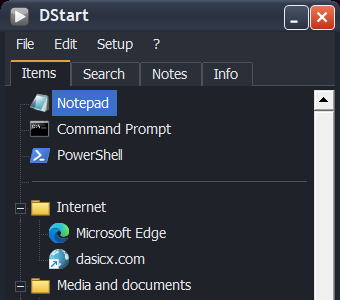
Five themes in all: Luna Blue, as at the top of the page, plus these four.
Why DStart
There are plenty of ways to start a program. DStart is for people who want their own list, want it to go where they go, and never want to wait for it.
-
It never freezes
Opening a folder, loading icons, checking that a file exists and starting a program all happen in the background, with a separate queue for each drive and network share. A share that stops answering only delays its own rows, and the rest of the list keeps working. In the test suite, the window answers within 25 ms while a 20,000-file folder is rescanned.
-
Truly portable
One exe of about 240 KB, using the .NET Framework that is already part of Windows 10 and 11. Settings are a single file beside it. Paths are stored relative to DStart's folder or its drive, so they still work when the USB stick gets a different letter.
-
Safe with sync tools
Share one list between PCs through MEGA, Dropbox or a similar tool: DStart never overwrites a newer copy that arrived from another PC. Everyday use writes nothing to the shared file. Window position and run counts are kept per PC, and a running DStart picks up a new list by itself.
-
Private by design
DStart contains no networking code at all: no update checks, no telemetry, no web results. You can block it in your firewall and lose nothing. URL items simply open in your browser.
-
A list you arrange, and a search when you'd rather type
Groups and subgroups for the mouse, search for the keyboard. Search covers your items, live folders and the Start menu, understands initials (
vscfinds Visual Studio Code), and puts what you use most first. -
Hard to lose your list
Undo and redo for every change. Each save goes to a temporary file first and keeps the previous version as a backup. A damaged file is set aside and the backup restored, and a failed save is retried instead of lost.
Compared with other launchers
| What it's like | DStart | |
|---|---|---|
| The Windows Start menu | Mixes your programs with recommendations and web results. Stays on the PC it's on. | Only what you put there, and it goes with you on a stick or a synced folder |
| Search-box launchers | Fast when you know the name. No list to arrange or browse with the mouse. | Both: type to search, or browse your groups, the panel or the tray menu |
| Portable app suites | Built around their own catalogue of repackaged apps, with an online updater. | Starts anything you already have: programs, scripts, documents, folders, links and Settings pages, and never goes online |
| Desktop and taskbar shortcuts | Pile up, and break when a program moves. | Repair paths finds items whose program has moved and points them to the new place |
| PStart | The classic portable launcher, last released as version 2.11. | Its layout and spirit, built anew for today's Windows, and it imports your PStart list |
At a glance
| Size | One exe of about 240 KB |
| Install | None. Run it from any folder or a USB stick |
| Needs | Windows 10 or 11 (the .NET Framework 4.8 it uses is part of Windows) |
| Network | None. No update checks, no telemetry |
| Settings | DStart.xml, next to the exe |
| Registry | Untouched, unless you turn on Start with Windows |
| Tested | Over 900 automated checks, plus freeze tests with huge folders and unreachable shares |
What it does
-
Items of every kind
Programs, documents, folders, web links and
ms-settings:pages, each with its own parameters, start folder, window state, custom icon, global hotkey, and the option to run as administrator. -
Live folders
Drop a folder on the list and DStart lists its programs whenever you open it, as subfolders or flattened into one list, up to six levels deep. Uninstallers and updaters are left out.
-
Scan a folder for programs
Point it at a folder of portable tools: results stream in as they are found, you tick the ones to keep, and Stop works at once.
-
Recent and most used
Your last-started and most-started items, in the tray menu and on the Search tab while the box is empty.
-
Repair paths
Moved your tools folder? DStart finds the items whose program is gone, suggests where they went, previews the new paths, and fixes them in one step that a single Undo reverses.
-
Autostart
Items can start along with DStart or when it exits. Hold Shift while DStart starts to skip them.
-
Screen corners and edges
Optionally, a click at a corner or edge of the screen opens the panel, the menu or the search. All off by default.
-
Several lists
DStart workstarts a second DStart with its own list inwork.xml, for example one for work and one for home. -
Notes and Info
A Notes tab for quick notes, and an Info tab with the free space of your drives. Either can be hidden.
Keys
| Ctrl Alt D | Show or hide the panel (can be changed) |
| Ctrl Alt M | The program menu, anywhere (can be changed) |
| Enter | Run |
| Shift Enter | Run as administrator |
| Ctrl Enter | Open the file's location |
| Alt Enter | Properties |
| F2 / Del | Rename / delete |
| Ctrl Up / Down | Move the item |
| Ctrl N / G | Add an item / a group |
| Ctrl Z / Y | Undo / redo |
| Ctrl F / Ctrl Tab | Search / next tab |
| Esc | Clear the search, then hide the panel |
Bring your list along
Coming from PStart?
Put PStart.xml next to DStart.exe before the first run and your list comes across automatically. Later, use File → Import PStart.xml to add it as one group. Groups, separators, custom icons and run counts come along, and so do the settings with a clear DStart equivalent. Your PStart file is only read, so PStart can keep using it.
On more than one computer
Keep DStart in a folder your sync tool shares, or on a USB stick. Each PC keeps its own window position and run counts, and only real changes to the list are written to the shared file. If the list was changed on two PCs before they synced, the losing version is kept as a .kept file, so nothing is lost.
Privacy
DStart has no networking code. It doesn't check for updates, doesn't send telemetry, and doesn't search the web. It only touches a network share if you add one to your list, and links open in your own browser.
Everything it knows stays in its folder: DStart.xml for your list and settings, DStart.<PC name>.state.xml for what belongs to one PC, and a small DStart.log for errors.
Good to know
- Windows may warn about an unrecognised app the first time you run it. Choose More info → Run anyway. You can check the download against the SHA-256 at the top of this page.
- If DStart's folder can't be written to, its settings go to
%APPDATA%\DStartinstead. - Not carried over from PStart: notes with reminders, scheduled items,
autorun.infcreation, running as another user, a list background image, and languages other than English. - DPI scaling is set when DStart starts, so moving the panel between monitors with different scaling can make it look soft.
Credits
For years, PStart was the first thing I put on every computer and every USB stick. DStart is my thank-you to it: the same idea, rebuilt for the Windows of today, and made never to keep me waiting.
DStart is inspired by PStart by Pegtop Software, a free portable launcher for Windows. Its layout, its settings and the way it imports a PStart list follow the original. My thanks to Pegtop Software for creating PStart and sharing it with everyone.
DStart is an independent project, written from scratch. Pegtop Software is not involved in it and does not support it, so please don't bring problems with DStart to them: write to me instead.
DStart is free to use. It is distributed as a program only; the source code is not published.
Contact
Found a problem, have a question or a suggestion? Write to mail@dasicx.com. The address and a link to this page are also in DStart itself, under ? → About DStart.
For a problem, it helps to say which version of Windows you use, what you did, and what you expected. DStart.log, next to the exe, lists the errors DStart ran into. It can contain the paths of your programs, so look through it before you send it.