Tell uHighlight the words that matter to you (names, products, topics, warning signs) and they light up on every page you read, each in its own color. A 5,000-word page becomes the four lines you actually came for.
Keep separate lists for separate jobs, see every match of a page in one panel, and catch what is new since you last looked.
It runs in Chrome, Edge, Brave and other Chromium browsers, version 119 or later.
No account, no telemetry, no ads. The extension never contacts any server.
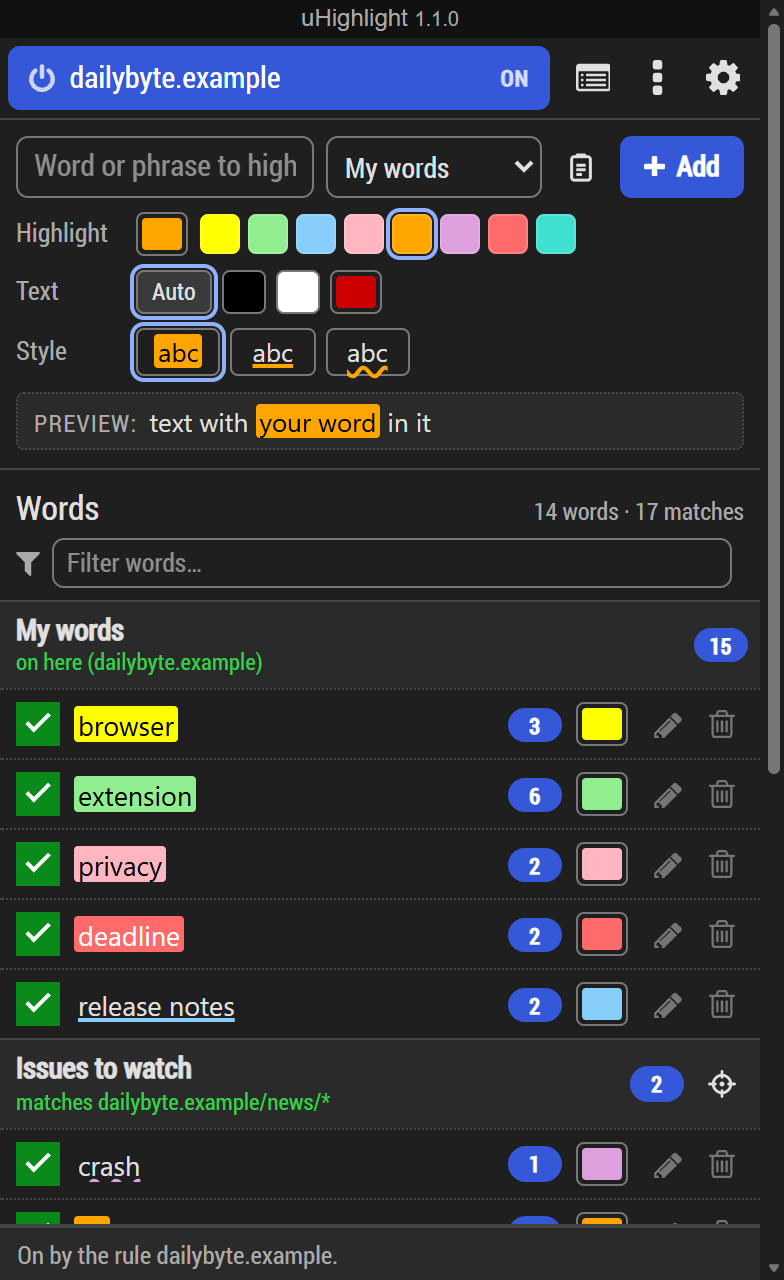
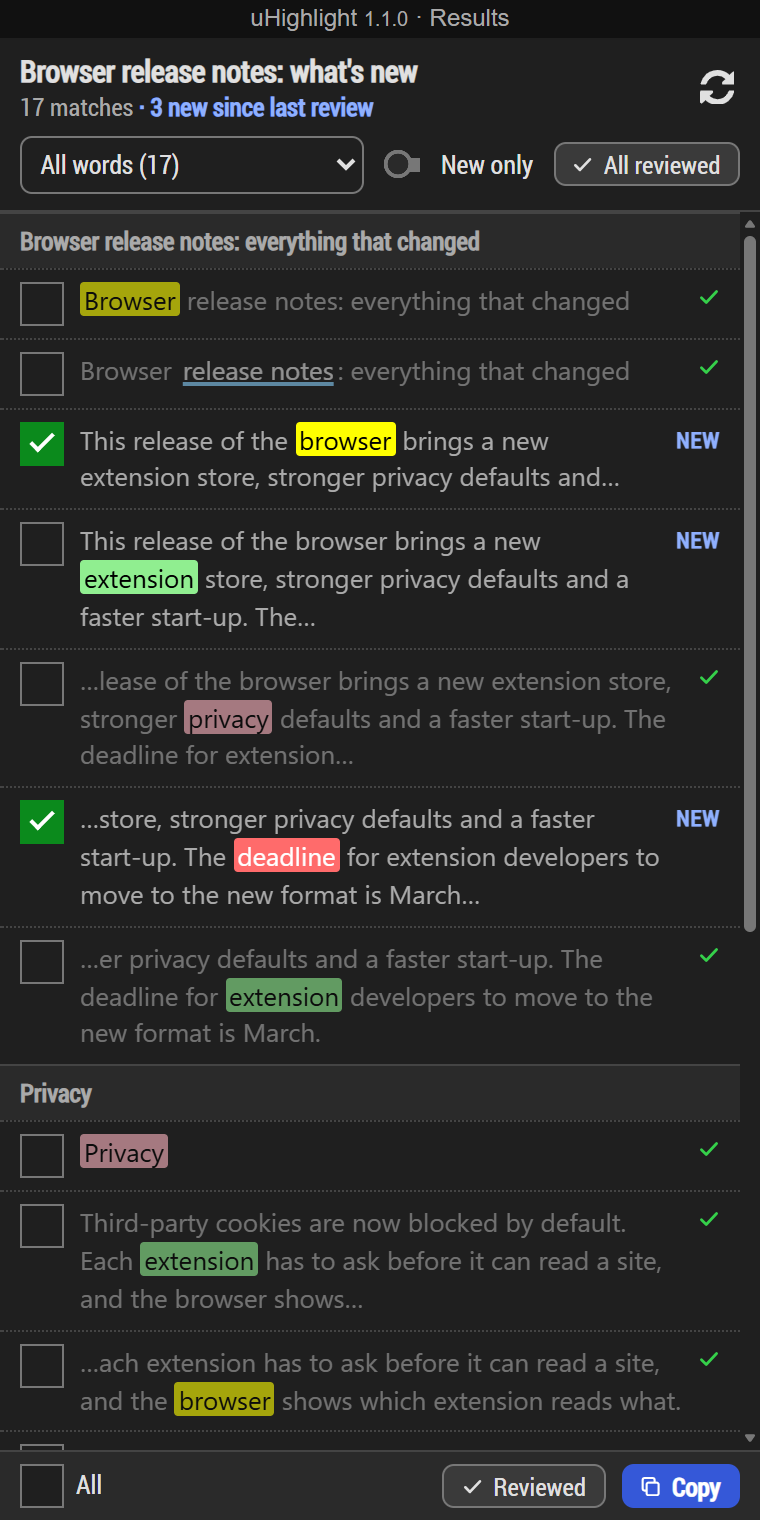
The popup: your words, by list, with their matches on the page.The results panel: every match, by heading, and what is new.
What it is
Reading a long page for one thing is slow. uHighlight keeps a list of the words and phrases you care about, and marks every one of them on the pages you read, as you read them.
You decide where it runs: on the sites you turn it on for, or everywhere except the sites you leave out.
It is made for anyone who reads a lot of pages looking for the same things:
Researchers and students: mark the key terms of your topic and read papers, docs and articles in half the time.
Security and IT work: watch advisories, log viewers and ticket queues for the product names, CVE ids and hosts you look after.
Job hunting: spot remote, your stack and your deal-breakers in every listing, and see at once which ones are new.
Shopping: limit a list to the specifications of product pages and catch the allergen, the material or the size that matters to you.
Developers: follow the issues and pull requests that mention your module, your name or a crash you are chasing.
News and markets: track companies, people and places across all the sites you read, and copy what you find with links.
If you used version 1.0: saved lists, a results panel and more are new in 1.1.
How it works
Click the uHighlight icon in the toolbar.
Click the site at the top to turn highlighting on for it. It turns blue and says ON. The first time, your browser asks whether uHighlight may read the site: choose Allow.
Type a word or phrase and press Enter. Each new word gets a color of its own; pick another, a text color or a style first if you like.
Change a word's color from the list, or click the pencil to edit it.
To see every match of the page, click the results button next to the site.
Each word has a look of its own, so you can tell them apart at a glance:
browser A background color, with black or white text, whichever reads better
deadline Or a text color of your choice
release notes An underline, which keeps the page's own text color
Chromium A wavy underline
AltShiftH
Turn highlighting on or off for the current site
Enter
In the popup: add the word, or save the word being edited
Esc
In the popup: cancel an edit, or clear the filter
Double-click
In the popup: edit a word
The shortcut can be changed on the browser's extension shortcuts page, also reachable from uHighlight's settings.
Try it here
Type a word and press Enter. This is what it looks like on a page, with the counts the popup shows you.
Browser release notes: what changed this month
The new browser release brings a faster start-up, a redesigned tab strip and stricter privacy defaults. Third-party cookies are now blocked in private windows, and the browser warns before a site asks for your location.
Extension developers get a longer deadline for the move to the new extension platform: the old one keeps working until the next release. Security fixes in this release address two issues reported by researchers, one of them in the browser's PDF viewer.
The release reaches all users over the coming weeks. Privacy settings you changed yourself are kept as they are.
Nothing you type here leaves this page.
A look around
Besides the popup and the results panel, a list can be limited to one part of a page, and everything comes in the theme of your choice.
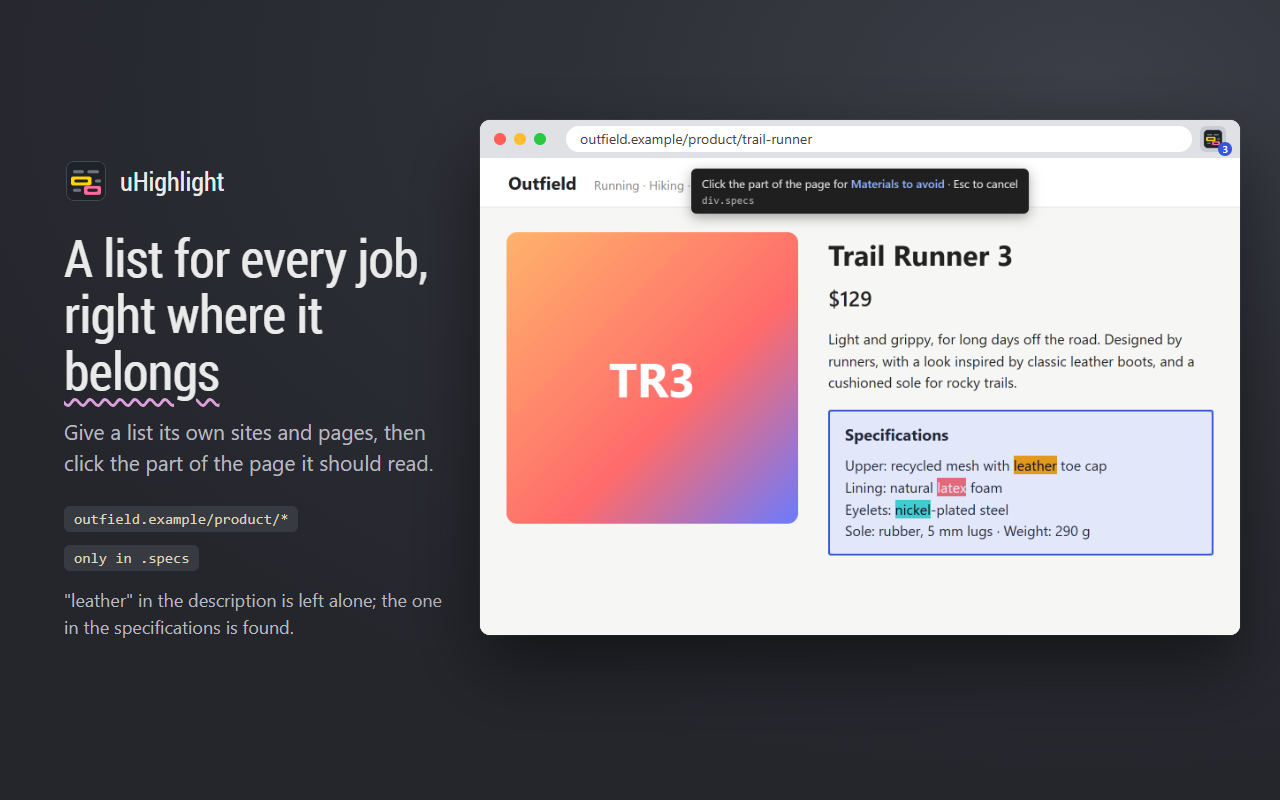
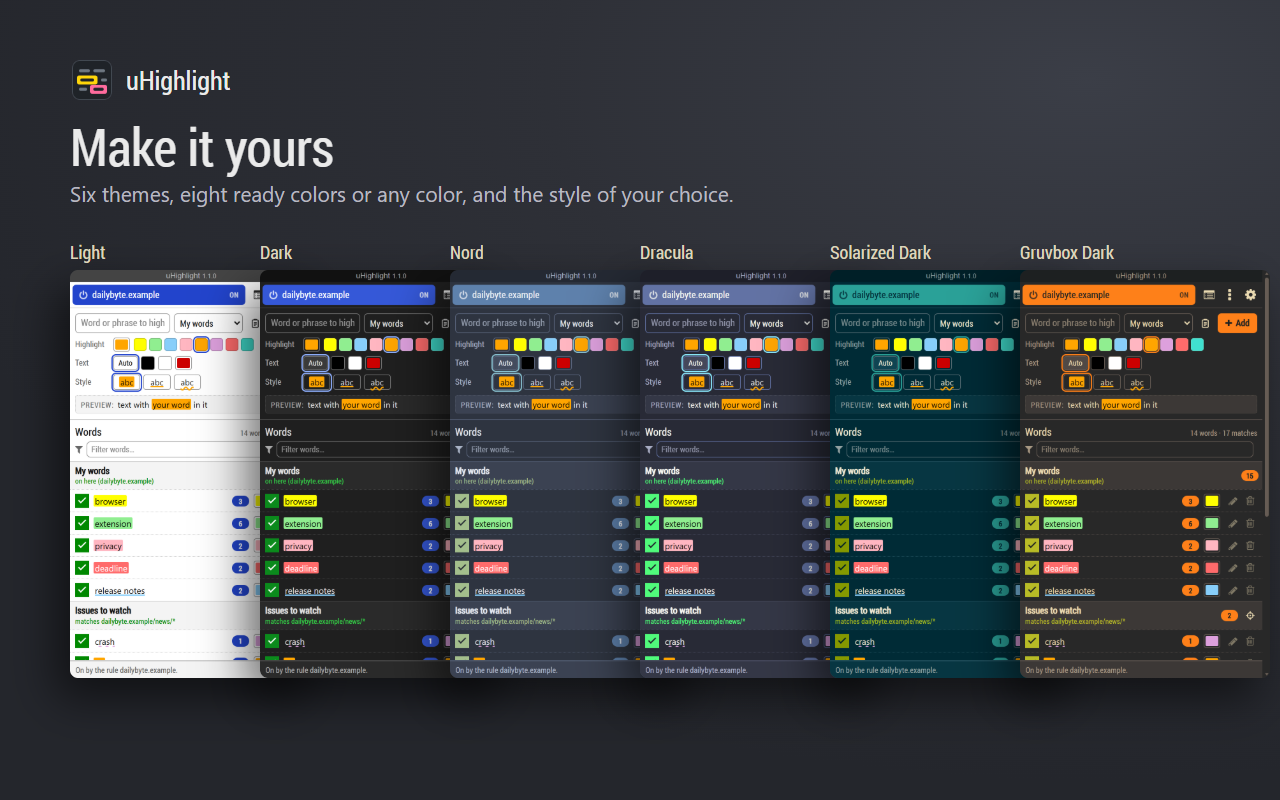
A list limited to the specifications of product pages: "leather" in the description is left alone.The popup in each of its themes.
What it does
Aa
Your words, your colors
Any word or phrase. Eight ready colors or any color you like, automatic, black, white or custom text, and a background, underline or wavy underline. A preview shows how it will look before you add it.
www
Only where you want it
One click in the toolbar turns highlighting on or off for the site you are on; uHighlight then asks your browser for access to that site, and to no other. Or turn it on for all websites, and keep a list of the ones to leave out. *.example.com covers a site and all of its subdomains.
≡
Saved lists, each with its own scope
Besides your words, keep lists for particular places: one that runs on github.com/*/issues/*, another only in the specifications of a shop's product pages. Pick a section in the popup, click the part of the page, and the list is limited to it. The popup says which lists run on the page and why, and the settings can test any address.
123
Counts and results
How many times each word appears on the page, in the popup, and in all on the toolbar icon. The results panel, beside the page, lists every match with the text around it, under the page's headings; click one to see it on the page.
new
What is new since you last looked
Mark the matches of a page as reviewed; next time, New only shows just what has appeared since. Select matches and copy them, each with a link that opens the page at that very text.
+
Add words from the page
Select text on any page, right-click and choose Highlight "…". The word is added, and highlighting is turned on for that site.
||
Pause a word without losing it
Untick a word to stop highlighting it for now. It keeps its colors for when you want it back.
a≠A
Matching your way
Whole words by default, and phrases are found even when part of them is bold, italic or a link. Turn on case sensitivity so that "Browser" no longer matches "browser", or partial matching so that "brow" also matches inside "browser".
</>
Leaves the page alone
Highlights are painted by the browser over the text, without changing the page's content. Text stays selectable and copyable, and sites keep working as they should. Text that appears later, text inside page components (shadow DOM) and text in embedded frames is highlighted too.
◐
Themes
Auto follows the browser's light or dark mode. Or choose Light, Dark, Dracula, Nord, Solarized Dark or Gruvbox Dark, for the popup and the settings.
{ }
Paste, back up, undo
Paste many words at once, one per line. Export everything to a file; importing one shows what it holds first, to merge with your settings or to replace them. Removed something by mistake? Undo. If your browser syncs its settings, your words follow you; a list can also be kept on one device only.
New in 1.1
Version 1.1 turns uHighlight from a highlighter into a reading tool.
lists
A list for every job
Keep your words in lists, each with its own place: a list for github.com/*/issues/*, one for job boards, one for your news sites. Turn a whole list on or off in one click.
section
Pick a part of the page
Click Pick a section, then click the part of the page you care about: product specifications, the comments, the main article. The list only looks there, not in menus, ads or footers.
panel
Every match in one place
The results panel opens beside the page and lists every match with the text around it, under the page's own headings. Click one and the page scrolls straight to it.
review
Only what is new
Mark a page's matches as reviewed. When you come back, New only shows just what appeared since. Made for pages you check every day.
share
Copy with links
Select matches and copy them, each with a link that opens the page at that exact sentence, ready for a report, a ticket or a message to a colleague.
count
Counts at a glance
The popup shows how often each word appears on the page, and the toolbar icon shows the total, so you know before you scroll whether a page is worth reading.
paste
Add fifty words at once
Paste a list, one word or phrase per line, and each gets a color of its own. Importing a backup now shows what it holds first, to merge with what you have or to replace it.
undo
Undo, safely
Removed a word or a list by mistake? Undo puts it back. And Undo never takes away anything you changed afterwards, in another window or on another computer.
device
Private lists stay home
Your words sync with your browser account, but you can keep any list on this device only, for the words you'd rather not have synced.
access
Access you control
uHighlight reads no site until you turn it on for that site. Your browser asks you, one site at a time, and you can take access back whenever you like.
Bring your words along
Back up and restore
Use Settings → Backup → Export to save your words, lists and settings to a file. Import shows what a file holds first, so you can merge it with what you have or replace it.
On more than one computer
With your browser's sync on, your words and website lists follow you, except the lists you keep on one device only. Otherwise, use Export on one computer and Import on the other.
Privacy
uHighlight looks for your words in the text of the pages you visit, in your browser, and nowhere else. It has no telemetry, sends nothing anywhere, and contacts no server.
Your words, options and website lists are stored in the browser's extension storage. If your browser syncs extension data with your account, they are synced along with it, except the lists you keep on one device. Which matches you marked as reviewed stays on your device. Exports are files you choose to save.
What it asks for, and why:
Read the sites you allow, and only those: to find your words in their text and highlight them. Asked for one site at a time, when you turn highlighting on for it (or for all of them, if you turn it on for all websites).
The page you are on, while you use uHighlight on it (from the toolbar, the right-click menu or the shortcut): to highlight it right away, count its matches and show them in the results.
Tabs: to know which site you are on, so the popup can turn it on or off.
Scripting: to start highlighting in tabs which were already open, and to read a page's matches for the popup and the results panel.
Side panel: for the results panel.
Context menus: for Highlight "…" on selected text.
Storage: to keep your words and settings.
Good to know
Only the text of the page is highlighted, never what is in form fields such as search boxes and text areas.
A list limited to a part of the page finds that part by a CSS selector, chosen for you when you pick it. If a site changes its pages, pick it again.
It works on web pages (http and https). Browser pages, such as the extensions page and the Web Store, and files opened from your computer are not highlighted.
Credits
Third-party components bundled with uHighlight, each under its own licence:
Font Awesome 4.7.0 icons by Dave Gandy (SIL OFL 1.1, MIT).
Roboto Condensed font (Apache 2.0).
Contact
Found a problem, have a question or a suggestion? Write to mail@dasicx.com.
For a problem, it helps to say which browser and version you use, which site it happens on, and what you expected.